 SharingCast
Transfer Files Between Two Laptops Without a USB Drive
Moving files between a Windows PC, Mac, or Linux machine — no flash drive required
In this guide
Your options at a glance
There are five common ways to move files between two laptops. The best one depends on whether the laptops run the same operating system, how much data you are moving, and whether you have a spare USB drive.
| Method | Windows ↔ Mac | Setup | Best for |
|---|---|---|---|
| SharingCast | Yes | Open a web page | Quick transfers of any size, any OS |
| Nearby Sharing | No (Windows only) | Turn it on in Settings | Small files between Windows PCs |
| USB drive | Yes (mind the format) | Need a drive | Offline transfers |
| Cloud storage | Yes | Account, upload, download | Files you also want backed up |
| Network folder or cable | Possible but fiddly | Technical setup | Regular transfers on one network |
Method 1: SharingCast (works between any two laptops)
SharingCast sends files directly from one browser to another, so it works between Windows, Mac, Linux and Chromebook laptops with nothing to install.
- On the laptop that has the files, open sharingcast.com and choose Send.
- Drag in files or click Choose a whole folder to add a complete folder.
- Optionally set a password, then click Start sharing.
- On the other laptop, open sharingcast.com, choose Receive, type the code shown on the first laptop and click Connect.
- Tick the files you want and click Download selected. When the transfer finishes, click Download all to save everything as one ZIP (folders keep their subfolders inside it), or Download under each file. Files go to the browser’s download folder.
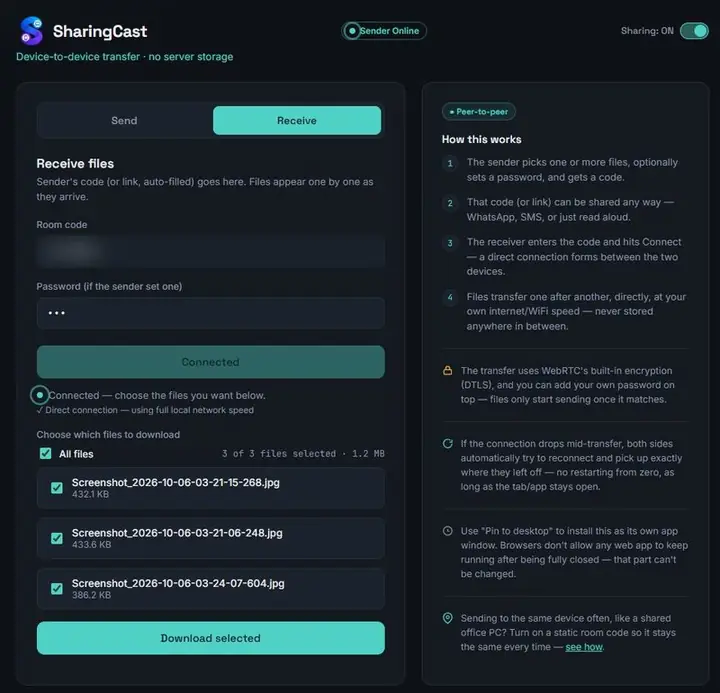
When both laptops are on the same Wi-Fi, the transfer stays inside your home network and is usually very fast. There is no file size limit and no copy is stored online. If you move files between the same two laptops often, a static room code saves typing a new code each time.
Start sending files →Method 2: Windows Nearby Sharing
If both laptops run Windows 10 or 11, Nearby Sharing is built in.
- On both laptops, open Settings → System → Nearby sharing and turn it on for “Everyone nearby” or “My devices only”.
- Make sure Bluetooth is on for both laptops.
- Right-click a file in File Explorer, choose Share and pick the other laptop.
- Accept the file on the other laptop.
Nearby Sharing is convenient for documents and photos, but it only works between Windows PCs, and very large folders can be slow if the laptops fall back to Bluetooth.
Method 3: USB drive or external disk
A USB stick or external SSD needs no internet at all, which makes it handy when there is no Wi-Fi. Two things to watch:
- Drive format. Drives formatted as FAT32 cannot hold single files larger than 4 GB. For big video files use exFAT, which works on both Windows and Mac.
- Copying twice. You copy everything onto the drive and then off again, so it takes twice as long as a direct transfer of the same speed.
Method 4: Cloud storage
OneDrive, Google Drive, Dropbox and iCloud Drive all let you upload on one laptop and download on the other. This is a good choice when you also want an online backup, or when the second laptop is not available right now. The downsides are the time spent uploading and downloading, and the storage quota on free plans.
Method 5: Network sharing and cables
Windows and macOS can share folders over a local network, and two laptops can be linked with an Ethernet cable. These work well for people comfortable with network settings, but they involve permissions, firewalls and sharing options that vary between versions. For most people, a browser-based transfer gets the same result without the setup.
Moving everything to a new laptop
Setting up a new laptop is the most common reason for a large laptop-to-laptop transfer. A simple order of work keeps it manageable:
- Sign in to your cloud accounts first. Email, browser bookmarks and passwords often sync automatically once you sign in.
- Transfer your personal folders. Documents, Desktop, Pictures, Videos and Downloads are where most personal files live. Send them folder by folder with SharingCast so each one finishes cleanly; each folder arrives as a zip with its structure kept, ready to extract.
- Reinstall programs rather than copying them. Programs need to be installed properly; copying their folders usually does not work.
- Check before wiping. Open a few files on the new laptop to make sure everything arrived before you reset the old one.
Common problems and quick fixes
The laptops cannot see each other. For SharingCast, check that the code was typed exactly, including the SC- prefix, and that both laptops are online. Office and school networks sometimes block peer-to-peer connections; connecting one laptop to a phone hotspot is a quick way to test this. For Nearby Sharing, make sure Bluetooth is on and both PCs have sharing set to “Everyone nearby”.
The transfer is slower than expected. Wi-Fi speed drops quickly with distance and walls. Moving both laptops closer to the router, or connecting one of them by Ethernet cable, often makes a big difference. Older routers on the 2.4 GHz band are much slower than 5 GHz.
A laptop went to sleep. Windows and macOS may sleep after a few minutes on battery. Plug both laptops in, or change the sleep setting temporarily, before starting a long transfer. If the page stays open, SharingCast tries to reconnect and resume when the laptop wakes.
Files over 4 GB will not copy to a USB drive. The drive is probably FAT32. Reformat it as exFAT (this erases the drive) or use a direct transfer instead.
The browser blocks the connection. Some privacy extensions disable WebRTC. Try a private window with extensions off, or use the SharingCast Windows app. See fixing connection issues for more.
Frequently asked questions
What is the fastest way to transfer files between two laptops?
A direct transfer on the same Wi-Fi network, or an external SSD, is usually fastest. Cloud uploads are slowest because the data goes up and then down again.
Can I transfer from Windows to Mac?
Yes. SharingCast works in any browser on both systems.
Do both laptops need internet?
They need a network connection to find each other. On the same Wi-Fi, the file itself stays inside your local network.
Is there a size limit?
No. You can send folders of any size, as long as the receiving laptop has space.