 SharingCast
Send Large Files Without Uploading Anywhere
Skip the wait — no upload, no size limit, no account.
In this guide
Why uploading is the slow part
Most ways of sending a big file work in two separate stages. First you upload the whole file to someone else’s server, such as a cloud drive or a transfer service. Only when that upload has finished can the other person start downloading it. A 10 GB video therefore crosses the internet twice, and the person waiting for it can do nothing until your upload reaches 100%.
Uploading also brings limits that have nothing to do with your file. Free plans cap how big a transfer can be, how many transfers you can make each month and how long the link stays alive. Cloud drives count the file against your storage. And for private material, such as contracts, medical scans or family videos, you end up leaving a copy on a server you do not control, often for days after it was downloaded.
If the person you are sending to is available right now, none of that is necessary. You can send the file straight from your device to theirs.
How sending without uploading works
A direct transfer connects two devices to each other instead of to a storage server. SharingCast does this with WebRTC, a technology built into every modern browser and used for video calls. A tiny signalling message helps the two browsers find each other; after that, the file data flows between the devices themselves.
- There is no upload step. The receiver starts getting data the moment you start sending, so a large file arrives in roughly the time of one transfer instead of two.
- There is no size cap. Nothing is stored on a server, so there is no 2 GB, 3 GB or 5 GB limit. The only real limit is free space on the receiving device.
- Nothing is left behind. When the transfer ends, the file exists on your device and on theirs, and nowhere else.
- It is encrypted. WebRTC encrypts the connection with DTLS by default. You can also set your own password, and files only start sending once the receiver enters it.
Step by step: send a large file with SharingCast
- Open SharingCast on the sending device. Visit sharingcast.com in any modern browser, or use the Windows or Android app.
- Choose Send and add your files. Tap to choose files, drag them onto the page, or add a whole folder. You can send any file type and any number of files.
- Add a password (recommended). Type a password in the Send tab. Share it with the receiver separately from the code.
- Press Start sharing. You get a short code that starts with SC-. Use Copy code or Copy link and send it to the other person.
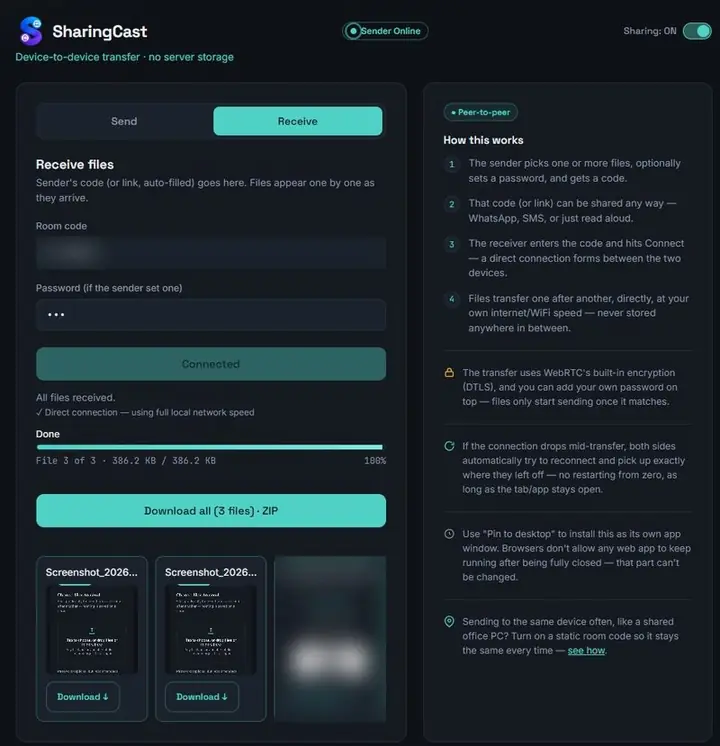
- The receiver opens the Receive tab. They enter your code (and the password, if you set one) and press Connect.
- Choose what to download. The receiving device lists the incoming files. Keep them all ticked or untick the ones you do not need, then press Download selected. Both screens show live progress.
- Save the files. When the transfer finishes, use Download all to save everything as one ZIP file, or the Download button under each file to save it on its own. Keep both devices awake until you are done.
If the Wi-Fi or internet drops for a moment, SharingCast tries to reconnect on both sides and continues from where it stopped, as long as the page or app is still open. You do not have to restart a 20 GB transfer from zero because the router blinked.
How long will it take?
A direct transfer runs at the speed of the slower connection between the two devices. On the same home Wi-Fi network that is often very fast, because the data never leaves your house. Across the internet, the sender’s upload speed is usually the limiting factor.
| File size | At 10 Mbps | At 50 Mbps | At 200 Mbps |
|---|---|---|---|
| 1 GB | about 14 minutes | about 3 minutes | under 1 minute |
| 10 GB | about 2.3 hours | about 28 minutes | about 7 minutes |
| 50 GB | about 11 hours | about 2.3 hours | about 35 minutes |
These are rough figures that ignore overhead, but they show why the same network matters: two laptops on a good home router can move a large folder in minutes, while the same transfer over a slow mobile upload can take hours. With a cloud service you would pay this time twice, once for the upload and once for the download.
When uploading is still the better choice
Direct transfer is not the answer to everything. Uploading to a cloud drive or transfer service still makes sense when:
- The receiver is not available now. If they will download tomorrow, the file needs to wait somewhere, and that is exactly what a cloud link is for.
- You are sending to many people at different times. One shared link is easier than many live sessions.
- You want a long-term copy. Backups belong in storage, not in a transfer.
For everything else, such as moving a video from your phone to your laptop, sending raw photos to a client on a call, or handing a large project folder to a colleague, a direct transfer is faster and more private.
Tips for very large transfers
- Keep devices on power. A laptop that goes to sleep halfway through will pause the transfer.
- Keep the phone screen on. Mobile browsers pause pages in the background. The Android app is more reliable for long transfers because it keeps the connection alive.
- Check free space first. The receiving device needs enough room for everything you send.
- Use the same Wi-Fi when possible. It is usually the fastest route.
- Split very large sends into batches. Separate files arrive one after another, so anything that has finished is kept if something goes wrong. A whole folder is delivered as a single zip with its structure intact, so for huge folders, sending one subfolder at a time keeps each batch manageable.
- Use the app if the browser struggles. Some browsers and extensions interfere with WebRTC. The Windows and Android apps avoid most of these problems.
Frequently asked questions
Is there really no file size limit?
Yes. SharingCast does not store files, so there is no cap. Very large transfers simply take longer.
Does the file go through your servers?
The file is not stored on our servers. On networks that block direct connections, the encrypted data can pass through a relay, which forwards it without being able to read it.
Do I need an account?
No. There is no sign-up on either side.
Can I close the page while it sends?
No. Browsers stop web pages when they are closed, so keep SharingCast open on both devices until the transfer finishes.
Can I send a whole folder?
Yes. Use “Choose a whole folder” or drag the folder onto the page. The receiver gets the folder as one zip file with all its subfolders intact, ready to extract.