 SharingCast
Device-to-device transfer · no server storage
Choose files to send
Files go directly to the other device, one after another — nothing is saved on a server.
Receive files
Sender's code (or link, auto-filled) goes here. Files appear one by one as they arrive.
How this works
- 1 The sender picks one or more files, optionally sets a password, and gets a code.
- 2 That code (or link) can be shared any way — WhatsApp, SMS, or just read aloud.
- 3 The receiver enters the code and hits Connect — a direct connection forms between the two devices.
- 4 Files transfer one after another, directly, at your own internet/WiFi speed — never stored anywhere in between.
How to send and receive files
Four quick steps, on any phone, tablet or computer. No app or account needed. Tap a picture to enlarge it.
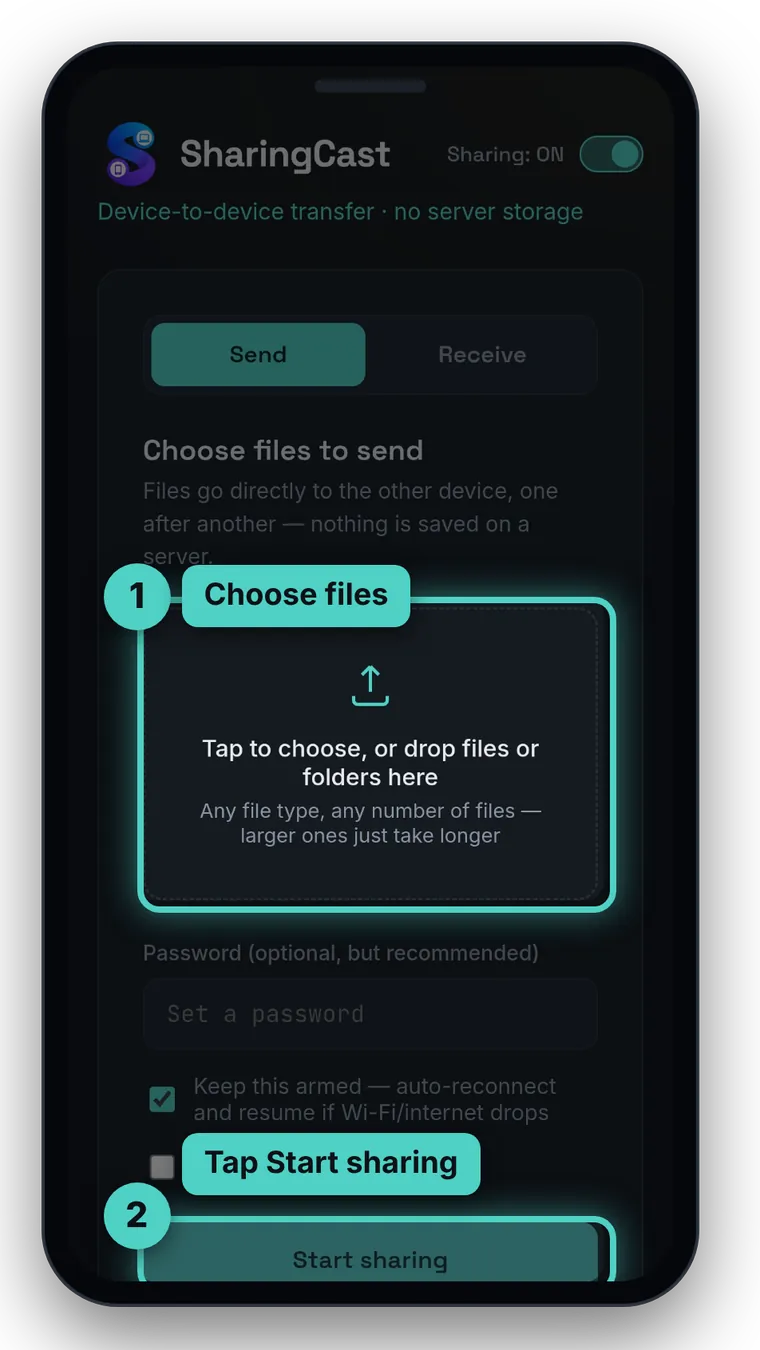
Choose your files
On the sending device, tap Send and pick files or a whole folder. Add a password if you like, then tap Start sharing.
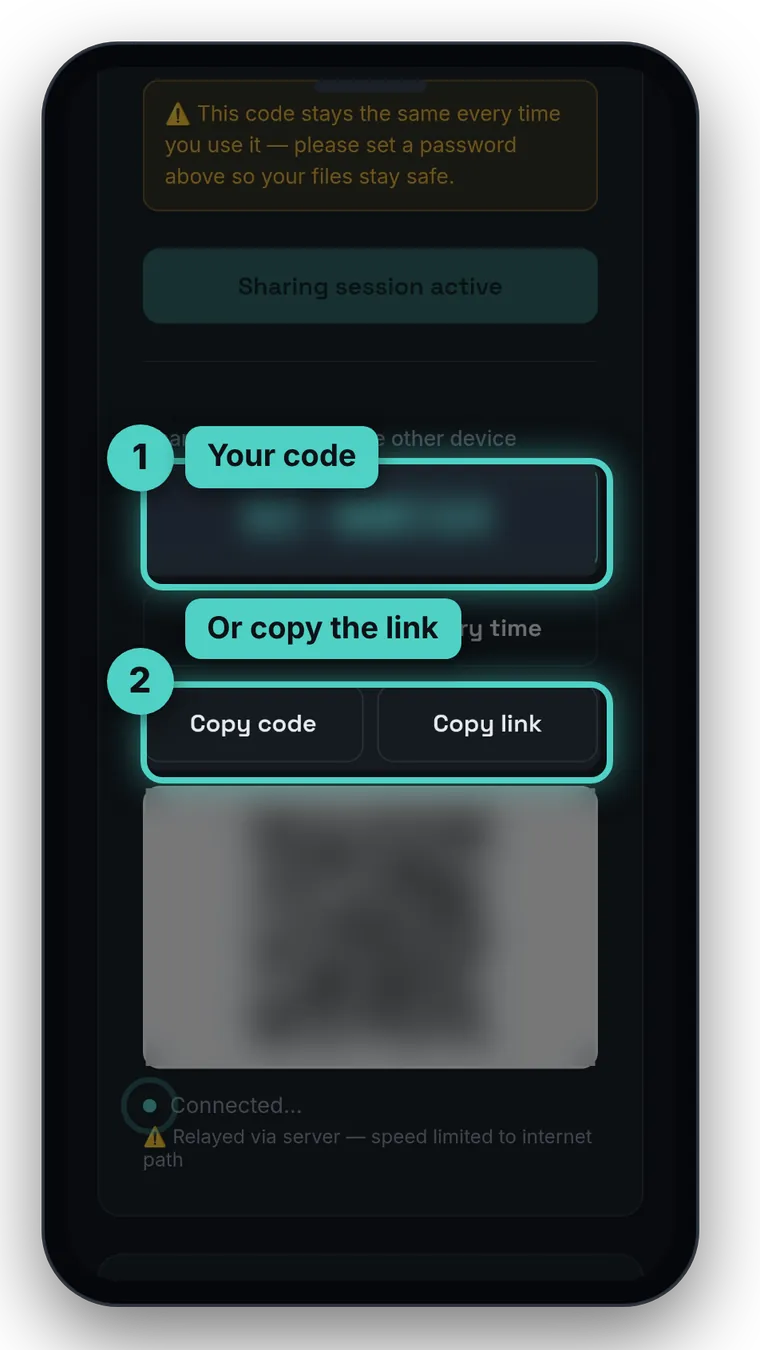
Share the code
You get a short code, a link and a QR code. Send it by WhatsApp or SMS, read it out, or let the other person scan the QR code.
Both devices need to stay online with SharingCast open until the transfer finishes. See all guides →
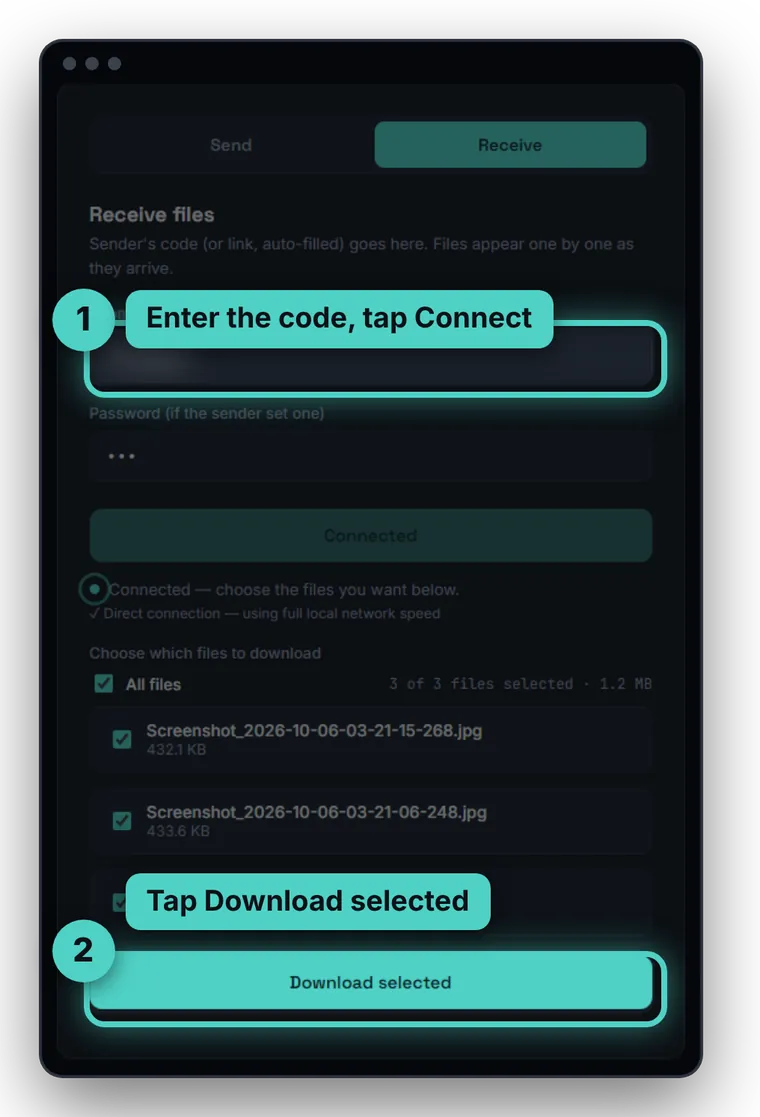
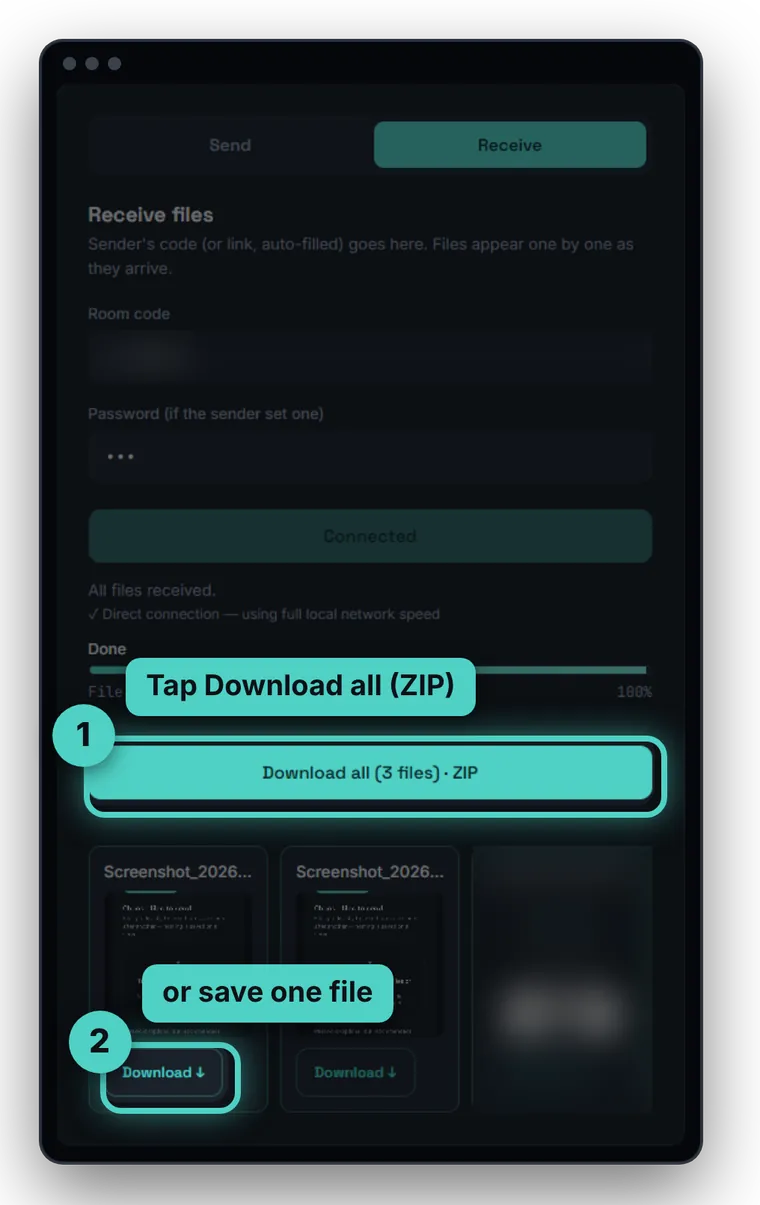
What is SharingCast?
SharingCast is a free, browser-based tool for sending files directly from one device to another. Instead of uploading your file to a company's server and waiting for the other person to download it, SharingCast opens a direct peer-to-peer connection using WebRTC — the same technology that powers video calls. Your file travels straight from your device to theirs, over your own internet or Wi-Fi connection, and it is never stored anywhere in between.
This makes SharingCast a practical alternative to email attachments, WeTransfer, or Google Drive when you just need to move a file from one device to another — whether that's a phone to a laptop, Windows to a Mac, or across any two modern browsers. There's no account to create, no app to install, and no artificial size limit on what you can send.
Learn more about how it works on our About page, or see how SharingCast compares as an AirDrop alternative for Windows and a way to send large files without uploading, or set up a static room code for a device that receives files often.