 SharingCast
AirDrop for Windows (and Mac, iPhone, Android too)
The free way to send files directly between devices — no app, no account, no upload.
In this guide
Why doesn’t Windows have AirDrop?
AirDrop is Apple’s own technology. It is built into macOS and iOS and relies on a combination of Bluetooth (to discover nearby devices) and a direct Wi-Fi link (to move the data). Apple has never released it for other platforms, so a Windows laptop simply cannot see an iPhone in the AirDrop menu, and an iPhone cannot see a Windows PC.
That gap is the reason so many people still email files to themselves, plug in a USB stick, or upload a video to Google Drive just to download it again on the device sitting next to them. Those workarounds do the job, but they are slow for large files, they leave copies of private files on third-party servers, and they often need an account on both ends.
What most people actually want from “AirDrop for Windows” is simple: pick a file on one device, have it appear on another device a few seconds later, with no cable and no sign-up. That is the problem this guide covers.
What Windows already offers (and where it falls short)
Windows does include a few sharing features, and it is worth knowing what they can and cannot do before you install anything.
Nearby Sharing
Nearby Sharing is built into Windows 10 and Windows 11. You right-click a file, choose Share, and pick another nearby PC. It uses Bluetooth and Wi-Fi and works well, but only between Windows computers. It cannot send to an iPhone, an iPad, a Mac or an Android phone.
Phone Link
Microsoft’s Phone Link app connects a Windows PC with a phone so you can see notifications, messages and photos. It is useful for keeping a phone and a PC in sync, but it is not designed as a quick “send this file to whoever is next to me” tool, it needs setup and pairing first, and its features vary depending on the phone you have.
Quick Share and other apps
Google’s Quick Share app for Windows lets Android phones and Windows PCs swap files, and open-source tools such as LocalSend work across platforms on the same Wi-Fi network. Both are good options, but they need an app installed on every device involved, and Quick Share does not cover iPhones.
SharingCast works like AirDrop, for every device
SharingCast opens a direct, encrypted connection between two browsers using WebRTC, the same peer-to-peer technology that powers video calls in your browser. Because it runs in the browser, it works on Windows, Mac, Linux, iPhone, iPad and Android with nothing to install and no account to create.
Here is what happens behind the scenes when you send a file:
- A short room code links the two devices. The sender gets a code (and a QR code). The receiver enters it, and the two browsers find each other.
- The file goes straight from one device to the other. It is not uploaded to a cloud folder first and it is not stored on our servers. The receiver starts getting data as soon as the sender starts sending.
- Everything is encrypted in transit. WebRTC encrypts the data channel by default. On some strict networks a direct path is not possible, and the data passes through an encrypted relay instead. The relay only forwards scrambled packets and cannot read your file. SharingCast keeps checking for a direct path and switches to it when one becomes available.
- There is no file size limit. Because nothing is stored on a server, there is no 2 GB or 5 GB cap. A 20 GB video folder works the same way as a single photo, it just takes longer.
The one thing to remember is that it is a live transfer: both devices need to be online, with the SharingCast page open, until the transfer finishes. It is closer to AirDrop than to an email attachment.
Step by step: send a file from Windows to an iPhone (or any device)
- Open SharingCast on the Windows PC. Go to sharingcast.com in Chrome, Edge or Firefox, or open the SharingCast app from the Microsoft Store if you have installed it.
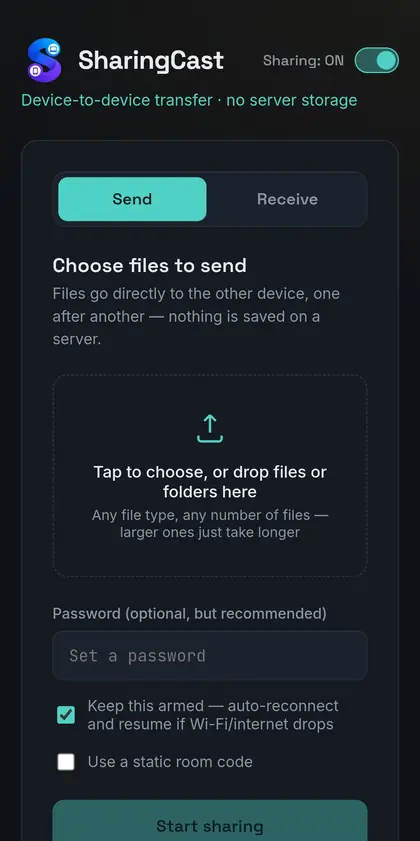
- Choose Send and add your files. You can pick one file, several files or drag a batch onto the page. You can also set an optional password if you are sending something private.
- Share the code. You will see a short room code and a QR code. Read the code out, send it on WhatsApp, or simply point the phone’s camera at the QR code.
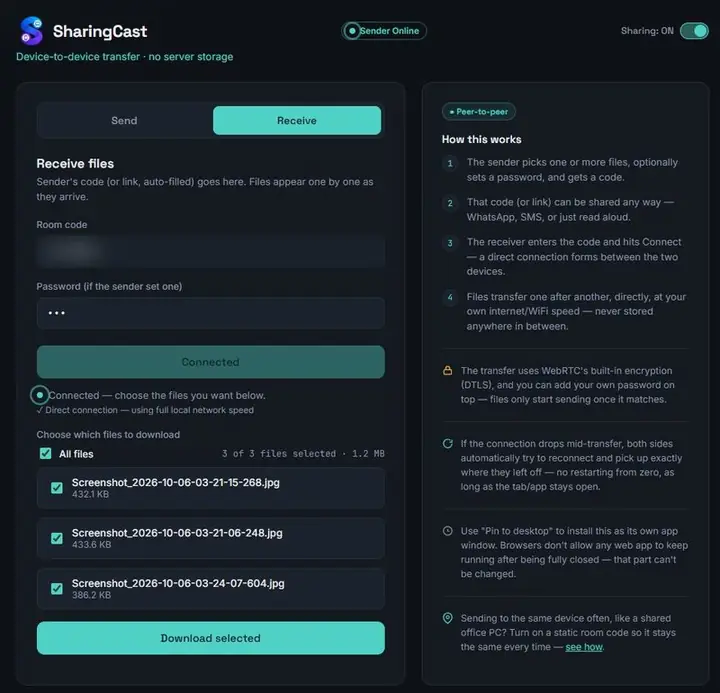
- Open SharingCast on the other device. On an iPhone, use Safari. On Android, use Chrome or the SharingCast app. Choose Receive and enter the code (scanning the QR code fills it in for you).
- Choose what to download. The receiving device lists the incoming files. Keep them all ticked or untick the ones you do not need, then press Download selected. Both screens show live progress.
- Save the files. When the transfer finishes, use Download all to save everything as one ZIP file, or the Download button under each file to save it on its own. Keep both devices awake until you are done.
Where do files end up?
- iPhone and iPad: Safari saves downloads to the Files app, usually in the Downloads folder. For photos and videos, open the file and use the share button to save it to Photos.
- Android: files go to the Downloads folder and show up in your Files or Gallery app.
- Mac and Windows: files go to the browser’s usual download folder.
Sending the other way
The process is the same in reverse. To move photos from an iPhone to a Windows PC, open SharingCast on the iPhone, choose Send, pick the photos, and enter the code on the PC. No iTunes, no cable and no iCloud upload.
Start sending files →Comparison of the main options
| Option | Works with iPhone | Works with Android | Install needed | Size limit |
|---|---|---|---|---|
| AirDrop | Yes (Apple only) | No | Built in | None |
| Windows Nearby Sharing | No | No | Built in | None |
| Quick Share for Windows | No | Yes | App on PC | None |
| Cloud drive (Drive, OneDrive) | Yes | Yes | Account needed | Storage quota |
| SharingCast | Yes | Yes | None (browser) | None |
Cloud drives are still the right choice when the other person is not online at the same time, because the file waits for them. For anything where you are both available, a direct transfer is faster and keeps the file off third-party storage.
Tips for fast, reliable transfers
- Use the same Wi-Fi when you can. If both devices are on the same network, the connection is usually direct and very fast, often limited only by your router.
- Keep the phone screen on. iPhones in particular pause browser tabs in the background. Keep Safari open and the screen awake until the transfer completes.
- Plug in for big transfers. Sending tens of gigabytes takes a while; keeping a laptop on power stops it from sleeping halfway through.
- Use a password for sensitive files. The room code is short so it is easy to share. Adding a password means only someone who has both can receive.
- Use a static room code for repeat transfers. If you move files between the same two devices every day, a static room code saves you from typing a new code each time.
- Install it like an app. SharingCast can be added to your home screen or desktop as a web app, and there is a Windows app in the Microsoft Store.
If something goes wrong
The devices won’t connect. Check that both devices are online and that the code was typed correctly. Some office, school and hotel networks block peer-to-peer connections; switching one device to mobile data usually fixes this.
The transfer is slow. Slow transfers usually mean the data is going through the relay rather than a direct path, or one device has a weak connection. Moving closer to the router or joining the same Wi-Fi network normally speeds things up.
The transfer stopped halfway. This almost always means one device went to sleep or the tab was closed. Keep both screens on and start the transfer again.
For more detail, see our guide to fixing file transfer connection issues.
Frequently asked questions
Does Windows have a built-in AirDrop equivalent?
Partly. Nearby Sharing works like AirDrop but only between Windows PCs. For sending to a Mac, iPhone or Android device, you need a cross-platform tool such as SharingCast.
Can I send files from Windows to iPhone without iTunes or cables?
Yes. SharingCast works in Safari on the iPhone and in any modern browser on Windows, over Wi-Fi or the internet. There is no cable, no iTunes and no app to install.
Do both devices need to be on the same Wi-Fi?
No. Being on the same network makes transfers faster, but SharingCast also works between devices on different networks, for example a laptop at home and a phone on mobile data.
Is there a limit on file size?
No. Files are not stored on a server, so there is no size cap. The only practical limit is free space on the receiving device and how long you are willing to keep both devices online.
Are my files private?
Files are encrypted in transit and are not saved on SharingCast servers. You can also add a password to a transfer. Read more in Is peer-to-peer file sharing safe?
Is SharingCast really free?
Yes. Sending and receiving files is free and does not need an account.