 SharingCast
How to Send Files from Android to iPhone
No cables, no iTunes, no size limits
In this guide
Why sending files from Android to iPhone is awkward
Android phones can share with each other using Quick Share, and iPhones use AirDrop. The two systems do not talk to each other. So when an Android user wants to send a video to a friend’s iPhone, the usual options are a messaging app (which shrinks photos and videos), email (which has small size limits), or uploading to a cloud drive and sharing a link.
A browser-based transfer avoids all three problems. Both phones already have a browser that supports WebRTC, so you can send a file at full quality, directly, without installing anything on the iPhone.
The quick way: SharingCast in the browser
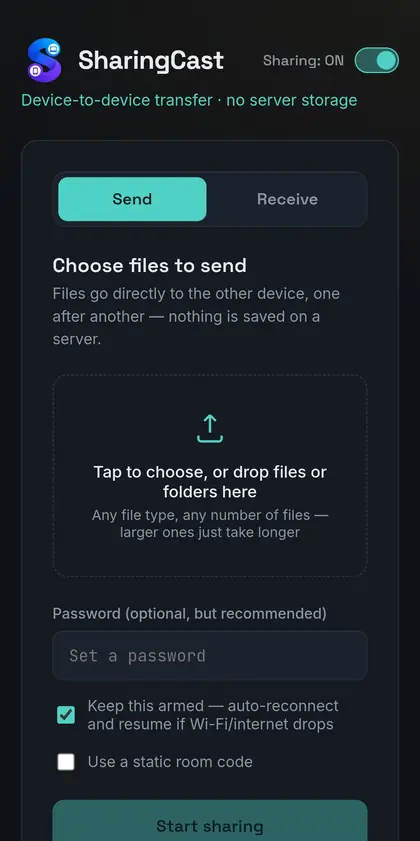
- On the Android phone, open sharingcast.com in Chrome, or open the SharingCast Android app.
- Tap Send and choose your photos, videos or documents. You can select many files at once.
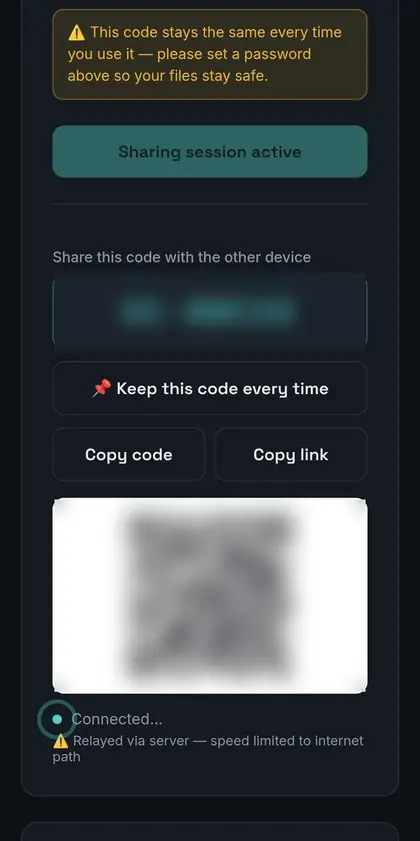
- Add a password if the files are private, then tap Start sharing.
- Share the code. Tap Copy code or Copy link and send it to the iPhone owner by message, or just read it out if you are together.
- On the iPhone, open sharingcast.com in Safari, tap Receive, enter the code (and password) and tap Connect.
- Choose what to download. The receiving device lists the incoming files. Keep them all ticked or untick the ones you do not need, then press Download selected. Both screens show live progress.
- Save the files. When the transfer finishes, use Download all to save everything as one ZIP file, or the Download button under each file to save it on its own. Keep both devices awake until you are done.
Photos and videos are sent as the original files, so there is no compression and no loss of quality. That matters for 4K video and for photos you plan to print or edit.
Start sending files →Where the file ends up on the iPhone
Safari saves received files to the Files app, normally in the Downloads folder (on iCloud Drive or On My iPhone, depending on your settings).
- Photos and videos: open the Files app, open the photo or video, tap the share button and choose Save Image or Save Video to move it into the Photos app.
- Documents: PDFs, Word files and spreadsheets can be opened straight from Files or shared into apps like Pages, Word or Google Docs.
- Downloaded as a ZIP: if you used Download all, tap the ZIP file once in Files to extract the photos and videos.
- Several files at once: in Files, tap Select, choose them all, then use the share button to save or move them together.
Sending from iPhone to Android
The same method works in the other direction. Open sharingcast.com in Safari on the iPhone, tap Send, choose files from Photos or Files, and start sharing. On the Android phone, open Chrome or the SharingCast app, tap Receive and enter the code. Files are saved to the Downloads folder and appear in the Files and Gallery apps.
One thing to know: iPhones often store photos in HEIC format. Most recent Android phones can open HEIC files, but if an older phone cannot, you can change iPhone camera settings to “Most Compatible” to save new photos as JPEG.
Sending a whole album or lots of videos
Moving a holiday’s worth of photos, or a long 4K video, from an Android phone to an iPhone is where a direct transfer really helps. A few habits make big batches smooth:
- Select from the Files picker, not one by one. On Android, the file chooser lets you long-press and select many photos or a whole folder. Choosing a folder keeps everything together.
- Charge both phones. A large batch keeps the screen and Wi-Fi busy for a while. Plugging in avoids a battery-saver mode that can slow or pause things.
- Stay on the same Wi-Fi. Two phones on one home network usually transfer much faster than over mobile data, and it does not use your data allowance.
- Use the Android app for long sends. The SharingCast Android app keeps the connection alive even when the screen turns off, which is more reliable than a browser tab for big batches. The iPhone side still needs Safari open.
- Check iPhone storage first. Settings → General → iPhone Storage shows free space. A 30 GB video folder needs at least that much room.
Because files are sent one after another, anything that has already finished is saved even if the transfer is interrupted later, so you never lose the whole batch.
Keeping personal photos private
Family photos, ID documents and screenshots of messages are exactly the kind of files people do not want sitting on a server. With SharingCast, files are not uploaded anywhere: they go from one phone to the other over an encrypted connection, and nothing is stored on our servers afterwards. For anything sensitive, set a password before you start sharing and tell it to the receiver separately, for example by saying it out loud rather than sending it in the same chat as the code.
This also means there is no link that someone could forward later. Once the transfer is finished and the session is closed, the only copies are on the two phones.
Other methods compared
| Method | Full quality | Size limit | Install or account |
|---|---|---|---|
| Messaging apps | Often compressed | Varies by app | App and account |
| Yes | About 20–25 MB | Email account | |
| Cloud drive link | Yes | Storage quota | Account |
| SharingCast | Yes | None | None (browser) |
Cloud links are still useful when the other person will download later. When you are both available, a direct transfer is quicker and keeps private photos off third-party servers.
Troubleshooting
The iPhone can’t connect. Make sure you are using Safari and that the code is entered exactly. If one phone is on a strict network such as office Wi-Fi, switch it to mobile data and try again.
The transfer pauses. The iPhone screen probably locked or Safari went into the background. Unlock it and return to the page; SharingCast will try to reconnect and continue.
I can’t find the file. Look in Files → Downloads. You can also tap the download icon in Safari’s address bar to see recent downloads.
More fixes are in our connection troubleshooting guide.
Frequently asked questions
Do I need to install an app on the iPhone?
No. SharingCast works in Safari. There is nothing to install and no account to create.
Do both phones need to be on the same Wi-Fi?
No. Same Wi-Fi is fastest, but transfers also work between different networks and over mobile data.
Will my videos lose quality?
No. The original file is sent exactly as it is.
Can I send to several iPhones at once?
Each session connects one sender and one receiver. Start a new session for each person.