 SharingCast
Fixing Common File Transfer Connection Issues
What to check when a direct browser-to-browser transfer won't connect
In this guide
Quick checks first
Most connection problems come down to one of a few simple things. Before trying anything else, run through this list:
- Is the code exactly right? Codes look like SC-7K2QF. Check for mix-ups between similar characters, and make sure the receiver is typing the code from the current session, not an old one.
- Is the password the same on both sides? If the sender set a password, files will not start until the receiver enters the exact same one.
- Are both devices online? Open any other website on both devices to confirm.
- Is the SharingCast page still open on both? A closed tab, or a phone screen that locked, ends the session.
- Try refreshing and starting again. A fresh session clears most one-off glitches.
“Waiting for the other device” never ends
If the sender sees the waiting message but nothing happens after the receiver presses Connect, the two devices are struggling to find a path to each other. This is usually caused by the network or the browser rather than the files.
- Switch one device to a different network. Turning off Wi-Fi on a phone so it uses mobile data is the quickest test. If it connects straight away, the original network is blocking peer-to-peer traffic.
- Turn off VPNs temporarily. Some VPNs block or reroute WebRTC traffic.
- Disable privacy extensions. Extensions that “prevent WebRTC leaks” can stop the connection completely. Try a private window with extensions off.
- Use the app. The SharingCast Windows and Android apps are often more reliable than a browser, because they are not affected by browser extensions and settings.
SharingCast uses an encrypted relay automatically when a direct path is blocked, so most strict networks still work. If nothing connects even on mobile data, the browser itself is the most likely cause.
The transfer is very slow
Transfer speed is limited by the slowest link between the two devices. Common reasons for slow transfers:
- Weak Wi-Fi signal. Moving closer to the router, or using the 5 GHz band, can multiply speed.
- Slow upload speed. Home internet often has much lower upload than download speed. Across the internet, the sender’s upload speed usually sets the limit.
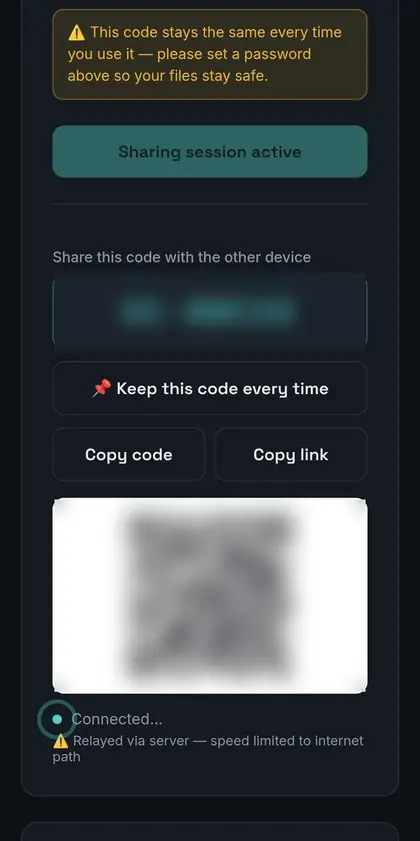
- Relay route. If the network forced the transfer through a relay, it may be slower than a direct path. SharingCast checks periodically for a direct path and switches to it if one becomes available.
- Other heavy traffic. Video streaming, cloud backups or game downloads on the same network all compete for bandwidth.
- Power saving. Laptops and phones on low-power mode may throttle Wi-Fi.
The transfer stops or drops halfway
When a connection drops briefly, for example because the Wi-Fi changed access point, SharingCast tries to reconnect on both sides and continue from where it stopped. Keep the option to auto-reconnect switched on in the Send tab. Resuming only works while the page or app is still open on both devices.
If transfers keep stopping:
- Stop devices from sleeping. Plug in laptops and keep phone screens on.
- Do not switch apps on iPhone. iOS pauses Safari in the background.
- Use the Android app on Android. It keeps the transfer running with the screen off.
- Send in smaller batches. Files are sent one after another, so anything already finished is kept even if a later file fails.
Browser and extension problems
SharingCast works in current versions of Chrome, Edge, Firefox and Safari. If one browser fails, try another before anything else. Things that commonly interfere:
- Ad blockers or privacy extensions that disable WebRTC.
- Very old browser versions. Update the browser and try again.
- Strict browser privacy settings that block local network access.
- Embedded browsers inside other apps (for example a link opened inside a social media app). Open the link in the real browser instead.
The homepage notes it too: when connection trouble appears, it is usually the browser, and the Windows or Android app is the most reliable option.
Open SharingCast →Network problems (office, school, hotel)
Managed networks often limit peer-to-peer traffic for security reasons. The relay usually gets around this, but some networks block that too. If you are on one of these networks:
- Connect one device to a phone hotspot instead.
- Ask your IT team whether WebRTC traffic is allowed.
- Avoid captive-portal Wi-Fi (the kind with a sign-in page) until you have completed the sign-in.
Phone-specific issues
iPhone and iPad
Use Safari, keep it in the foreground, and turn off Low Power Mode during large transfers. Received files are in Files → Downloads.
Android
Battery optimisation can pause background apps. The SharingCast Android app runs the transfer as a foreground service with a notification, which keeps it alive with the screen off. In Chrome, keep the tab visible.
Frequently asked questions
Why does it work on mobile data but not on Wi-Fi?
The Wi-Fi network is blocking peer-to-peer connections. This is common on office, school and public networks.
Do I have to start over if the connection drops?
No. As long as both pages stay open, SharingCast reconnects and continues from where it stopped.
Is the relay safe?
Yes. Data stays encrypted end to end between the two devices; the relay only forwards it.
Still stuck?
Get in touch through our contact page and tell us which devices and browsers you are using.