 SharingCast
How to Share Files Between Devices on the Same Wi-Fi
The fastest way to move files around your home or office, across every kind of device.
In this guide
In this guide
Why same-network transfers are fast
When two devices are connected to the same Wi-Fi router, a file sent between them can travel through the router without ever going out to the internet. That means your internet speed, and especially your upload speed, stops being the bottleneck. The limit becomes your Wi-Fi itself, which on a modern router is usually much faster than a typical home internet upload.
It also means the file never leaves your home, and it does not count towards any mobile data allowance. For big files such as videos, photo libraries or backups, the same Wi-Fi is the best place to transfer.
The easy way: any devices, any operating system
SharingCast works between any two devices with a modern browser: Windows, Mac, Linux, Android, iPhone and iPad. When both are on the same Wi-Fi, it automatically uses the direct local path.
- Open sharingcast.com on both devices.
- On the sending device, choose Send, add files or a folder, optionally set a password and press Start sharing.
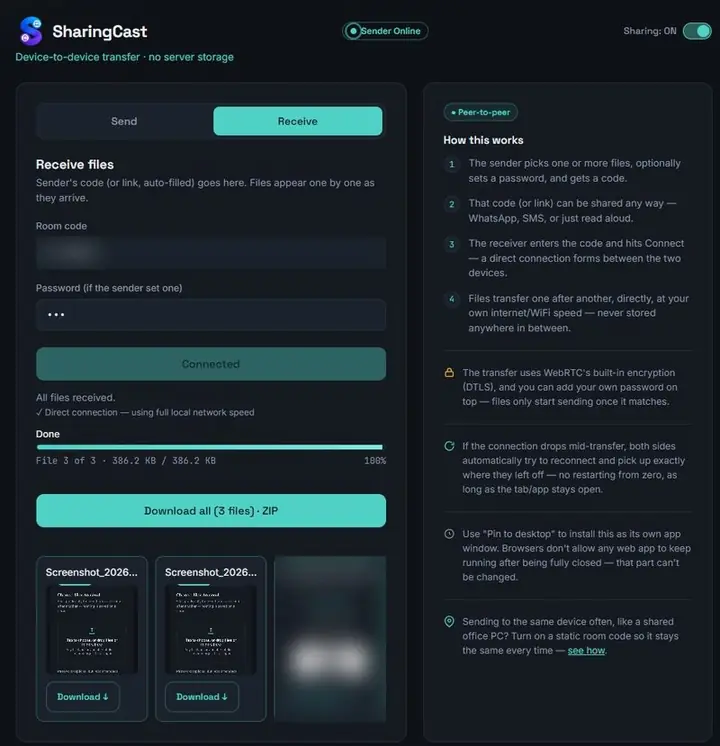
- On the receiving device, choose Receive, enter the code and press Connect.
- Choose what to download. The receiving device lists the incoming files. Keep them all ticked or untick the ones you do not need, then press Download selected. Both screens show live progress.
- Save the files. When the transfer finishes, use Download all to save everything as one ZIP file, or the Download button under each file to save it on its own. Keep both devices awake until you are done.
There is nothing to install, no account and no size limit. For devices you use together every day, the Windows and Android apps and a static room code make repeat transfers even quicker.
Built-in options by device
| Between | Built-in option | Works across platforms? |
|---|---|---|
| Two Apple devices | AirDrop | No |
| Two Windows PCs | Nearby Sharing | No |
| Android and Android | Quick Share | Android and Windows (with app) |
| Windows and Android | Phone Link, Quick Share app | Partly |
| Any two devices | Browser-based transfer | Yes |
Built-in tools are excellent within their own ecosystems. The difficulty is mixed households and offices, where an iPhone, an Android phone, a Windows laptop and a Mac all need to swap files. That is where a browser-based tool saves the most time.
Shared folders on a home network
Windows and macOS can share folders over a local network so other computers can open them. This suits a household or small office that wants a permanent shared folder, for example on a desktop PC that stays on. Setting it up involves sharing permissions, user accounts and sometimes firewall settings, and phones need a separate file-manager app to access it.
If you only need to move files now and then, a direct transfer gives you the same local speed without any configuration.
Getting the best speed
- Use the 5 GHz (or 6 GHz) band. It is much faster than 2.4 GHz at close range. Many routers show both as separate network names.
- Move closer to the router. Walls and floors reduce Wi-Fi speed sharply.
- Use a cable for one device if possible. A laptop or desktop on Ethernet halves the wireless work.
- Pause other heavy traffic. Streaming, game downloads and cloud backups compete for the same network.
- Keep devices awake and plugged in. Sleep and battery-saving modes slow or pause transfers.
When devices can’t connect on the same Wi-Fi
Guest networks and “client isolation”. Many guest Wi-Fi networks, as well as hotel and café networks, stop devices from talking to each other directly. SharingCast falls back to an encrypted relay, so the transfer still works, but it goes through the internet and is slower. Using your main network instead of a guest network fixes this at home.
Mesh systems and range extenders. These usually work fine, but if devices connect to different network names, make sure both names belong to the same network.
VPNs. A VPN on one device routes its traffic elsewhere, so the local path may not be used. Pause it during the transfer.
See our full guide to fixing connection issues for more.
Frequently asked questions
Does sharing on the same Wi-Fi use my internet data?
When the direct local path is used, the file stays on your home network. A small amount of data is used to connect the two devices.
Can I share between an iPhone and a Windows PC on the same Wi-Fi?
Yes. Open SharingCast in Safari on the iPhone and in any browser on the PC.
Is it safe on shared Wi-Fi?
Transfers are encrypted, so other people on the network cannot read your files. Add a password for extra protection.
How fast is it?
It depends on your router and signal. On a good 5 GHz connection, large files often move in minutes.