 SharingCast
How to Send a Whole Folder Without Zipping It
Choose the folder and send it. SharingCast packages it for the receiver with every subfolder intact.
In this guide
In this guide
In this guide
Why sending folders is usually awkward
Most sharing tools were built around single files. Email attachments, many upload services and chat apps cannot accept a folder at all, so the usual routine is: right-click the folder, compress it into a .zip file, wait, find the zip, attach or upload it, and then send it. If the folder is large, you also need enough free disk space for the folder and the zip at the same time.
That routine is so common that many people do not realise it can be skipped. With SharingCast you choose the folder itself, and the packaging is done for you.
How SharingCast sends a folder
When you add a folder to a SharingCast transfer, the receiver gets it as one zip file that contains the whole folder, including every subfolder and file in its original place. You do not need to create the zip yourself, and nothing is uploaded to a server along the way: the folder travels directly from your device to theirs over an encrypted connection.
- Folder structure is kept. Subfolders, file names and the arrangement inside the folder arrive exactly as they were.
- One tidy download. The receiver gets a single file instead of hundreds of loose files in their Downloads folder.
- No size limit. Folders of any size can be sent; the receiving device just needs enough space.
- Full quality. Files inside are not changed or recompressed. Photos and videos arrive exactly as they were.
- Mix and match. You can add folders and individual files to the same transfer.
Step by step
- Open sharingcast.com (or the Windows or Android app) and choose Send.
- Click Choose a whole folder, or drag the folder onto the page. Use + Add a folder or + Add more files to include more.
- Set a password if the contents are private, then press Start sharing.
- Send the code to the receiver with Copy code or Copy link.
- The receiver opens the Receive tab, enters the code (and password) and presses Connect.
- Choose what to download. The receiving device lists the incoming files. Keep them all ticked or untick the ones you do not need, then press Download selected. Both screens show live progress.
- Save the files. When the transfer finishes, use Download all to save everything as one ZIP file, or the Download button under each file to save it on its own. Keep both devices awake until you are done.
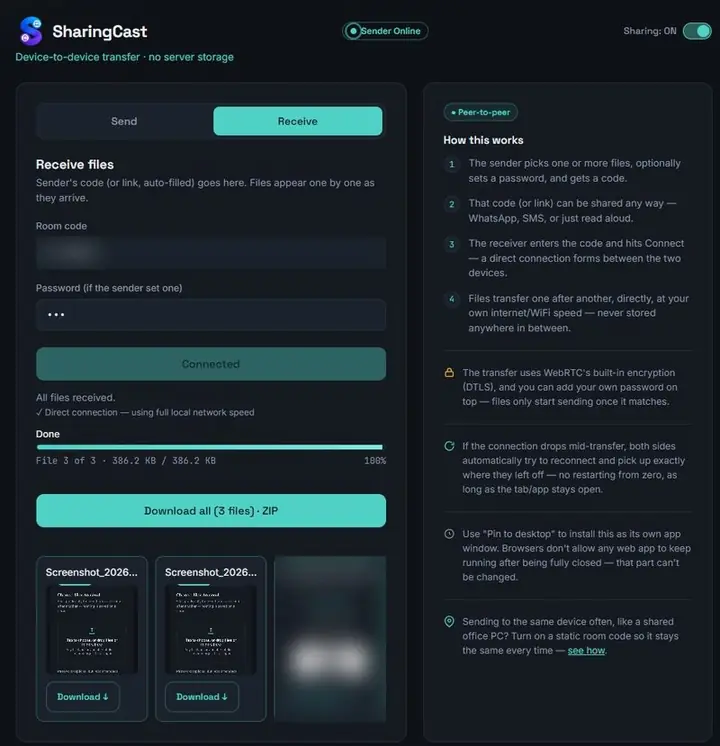
If the connection drops for a moment, SharingCast tries to reconnect on both sides and continue, as long as both pages stay open.
Send a folder now →Opening the folder on the receiving device
The zip file is saved where the receiver’s browser normally saves downloads. Extracting it restores the original folder:
- Windows: right-click the zip in Downloads and choose Extract All, or simply double-click it to browse inside.
- Mac: double-click the zip and macOS extracts the folder next to it.
- iPhone and iPad: open the Files app, go to Downloads and tap the zip once. iOS creates the folder alongside it.
- Android: open the Files app (for example Files by Google), tap the zip and choose Extract.
Once extracted, you can delete the zip to free up space. The folder inside is a normal folder with everything in its original place.
Compared with zipping it yourself
| Zip it yourself, then send | Send the folder with SharingCast | |
|---|---|---|
| Steps for the sender | Compress, wait, find the zip, send | Choose the folder, send |
| Extra disk space for the sender | Room for folder and zip | Not needed |
| Folder structure | Kept | Kept |
| What the receiver gets | A zip file | A zip file |
| Size limit | Depends on how you send it | None |
In other words, the receiver ends up with the same result, but the sender skips the manual compression step. Zipping it yourself still makes sense if you want to set a specific compression level or keep the archive for your own records.
Other ways to share a folder
Cloud storage. Google Drive, OneDrive and Dropbox can upload and share whole folders. This is good when the receiver will download later or when the folder should stay shared, for example for a team project. Large folders take time to upload and count against your storage.
External drive. Copying a folder to a USB drive works offline. Drives formatted as FAT32 cannot hold single files larger than 4 GB, so use exFAT for big videos.
Network shared folder. On a home or office network, a shared folder lets other computers open it directly. It takes some setup but suits ongoing access.
Tips for big folders
- Tidy up first. Delete duplicates and files the receiver does not need before sending.
- Split very large folders. Because a folder arrives as one zip, sending a huge folder one subfolder at a time keeps each transfer shorter and easier to restart if something goes wrong.
- Check free space on the receiver. They need room for the zip and, after extracting, for the folder too.
- Stay on the same Wi-Fi. Large folders move much faster on a local network.
- Keep both devices awake. Plug in laptops and keep phone screens on until the transfer completes.
Frequently asked questions
Do I need to zip the folder before sending?
No. Choose the folder in SharingCast and it is packaged for the receiver automatically.
Will the receiver get my subfolders?
Yes. The folder arrives as a zip with every subfolder and file in its original place.
Can I send a folder from my phone?
On Android, yes; choose a folder in the file picker or the SharingCast app. On iPhone, the file picker selects files rather than folders, so choose the files inside the folder instead.
Is there a limit on the number of files?
No. Any number of files can be sent; larger folders simply take longer.
Does it reduce quality?
No. Files inside the folder are sent exactly as they are.